Chatbot for Property Management Websites: Setup
Narasimhan Vallur | 2026-11-09
Last updated: November 13, 2026
A chatbot for property management websites connects visitors with property answers, available units and a next step such as booking a tour. A successful installation needs more than an embed script: your team must choose the property scope, approve policies, configure actions and test the handoff to staff.
Use this guide to plan a single-community rollout of the LOFTx.ai Messenger, illustrated with Dexter Hayes in Seattle. For a feature checklist, see seven things an apartment website chatbot should show. For a company site with several buildings, use the multifamily website chatbot guide.
Why a single-property website needs more than a chat bubble
On a website for one community, visitors arrive with similar questions, and they don't all want to have a conversation. Some want to scan the available units. Some want the pet policy in writing. Some want to ask, "Do any two-bedrooms have a lake view?"
A classic chat window serves the last group well. The first two groups have to type a question to find something that could simply be shown to them. The Messenger keeps the full chat, and adds screens for browsing:
- Home: the property at a glance. The intro video, an ask box, Request a Tour and Apply Now, featured units under "Available now", the amenities and the leasing office card.
- Ask AI: the full chat, with unit cards, tour and lead forms, and a live agent when your team takes over. The conversation stays when the visitor switches tabs.
- Vacancies: live units from your property management system (PMS), with a floor-plan filter, photos, details, and tour and apply buttons on every unit.
- Policies: your approved answers, grouped into categories and searchable.
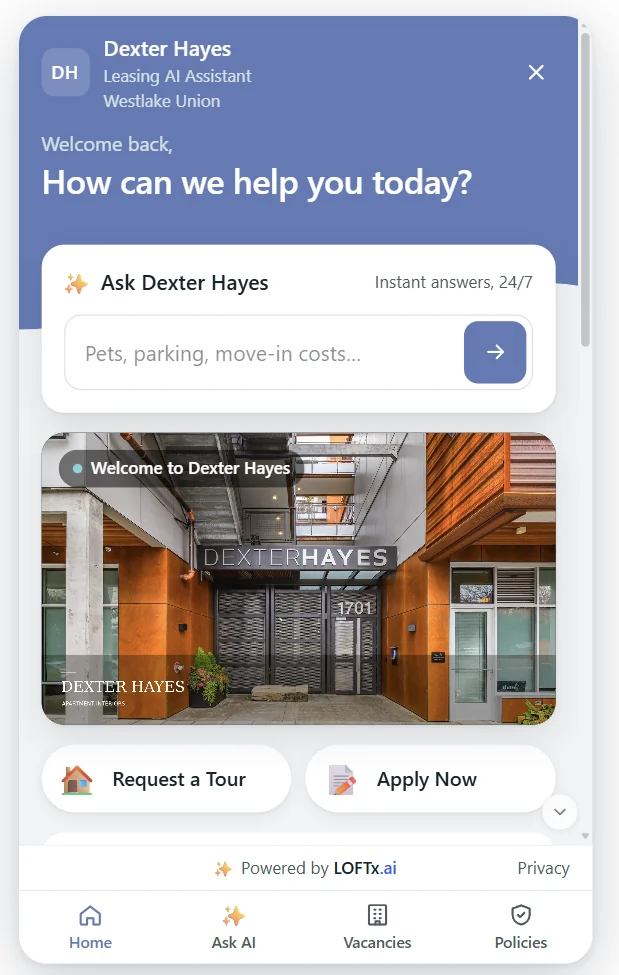
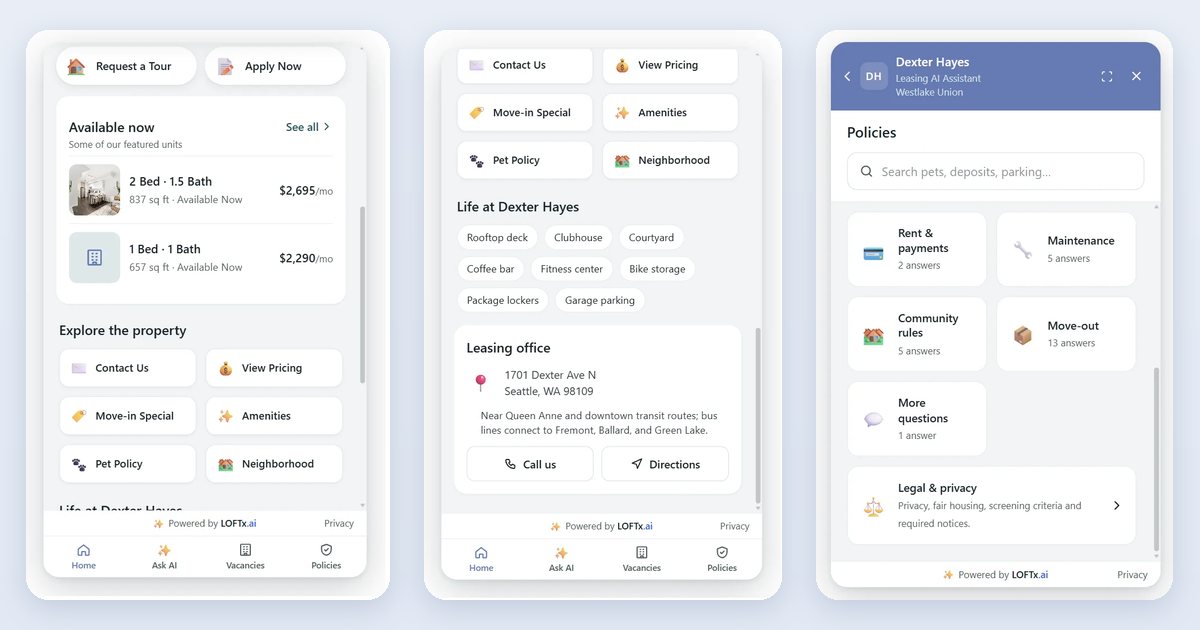
Home and Vacancies in the Messenger at Dexter Hayes. Screenshots from November 2026; units, prices and specials change.
What a chatbot for property management websites should show
Whatever chat you use, a single-property website chatbot should show only what's true for that building, today. That means:
- Live availability, from the PMS rather than a list someone updated last month.
- Policies your team has approved, in the words you chose.
- The leasing office, with a phone number to tap, directions and hours.
- A clear next step: a tour or an application.
- Nothing half-finished. An empty field or a placeholder looks worse than a missing section.
The Messenger is built around those rules. Its Policies tab shows only Knowledge Base answers your team has approved. Its Vacancies tab reads the live vacancy feed. Anything you haven't filled in, such as an intro video, office hours or tour videos, is hidden rather than shown empty.
A worked example: the Messenger at Dexter Hayes
Dexter Hayes is an apartment community at 1701 Dexter Ave N in Seattle. Its website, liveatdexterhayes.com, runs the LOFTx.ai Messenger for that one property. Here's what a visitor sees on each tab.
Home. The header carries the community's name, with the assistant's label under it. Below it come:
- the question "How can we help you today?"
- an ask box, "Ask Dexter Hayes · Instant answers, 24/7", with a hint of what to ask: "Pets, parking, move-in costs…"
- the community's welcome video
- the Request a Tour and Apply Now buttons
Scrolling down, Home shows four more sections:
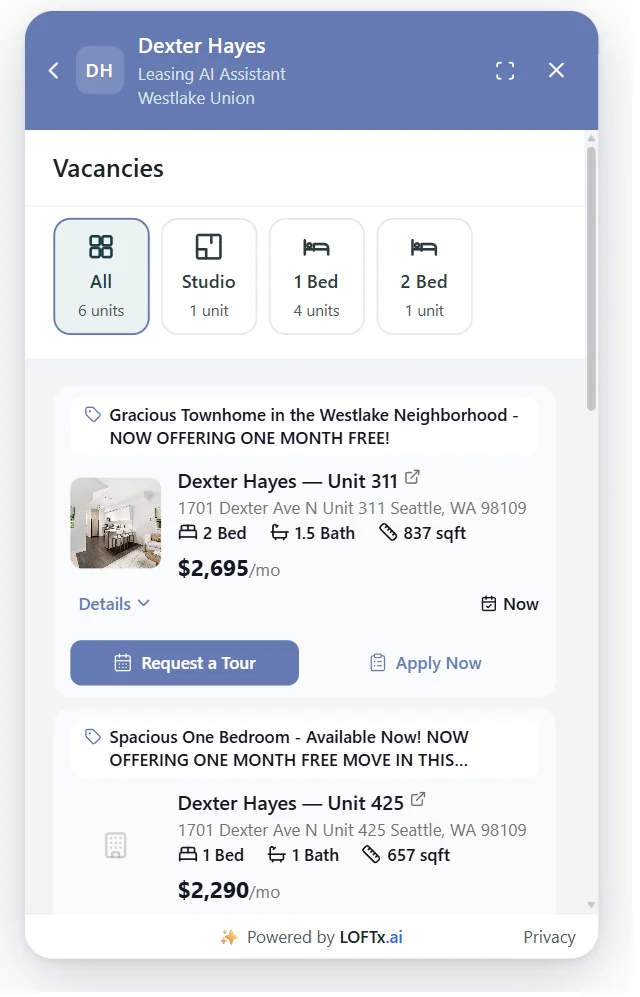
- Available now lists featured units with beds, baths, size and price. "See all" opens Vacancies.
- Explore the property turns the chatbot's other buttons into shortcuts: Contact Us, View Pricing, Move-in Special, Amenities, Pet Policy and Neighborhood. Each one runs exactly as it does in the chat.
- Life at Dexter Hayes shows the building's amenities as tags: rooftop deck, clubhouse, courtyard, coffee bar, fitness center, bike storage, package lockers and garage parking.
- Leasing office shows the address, a one-line note on transit routes, and Call us and Directions buttons.
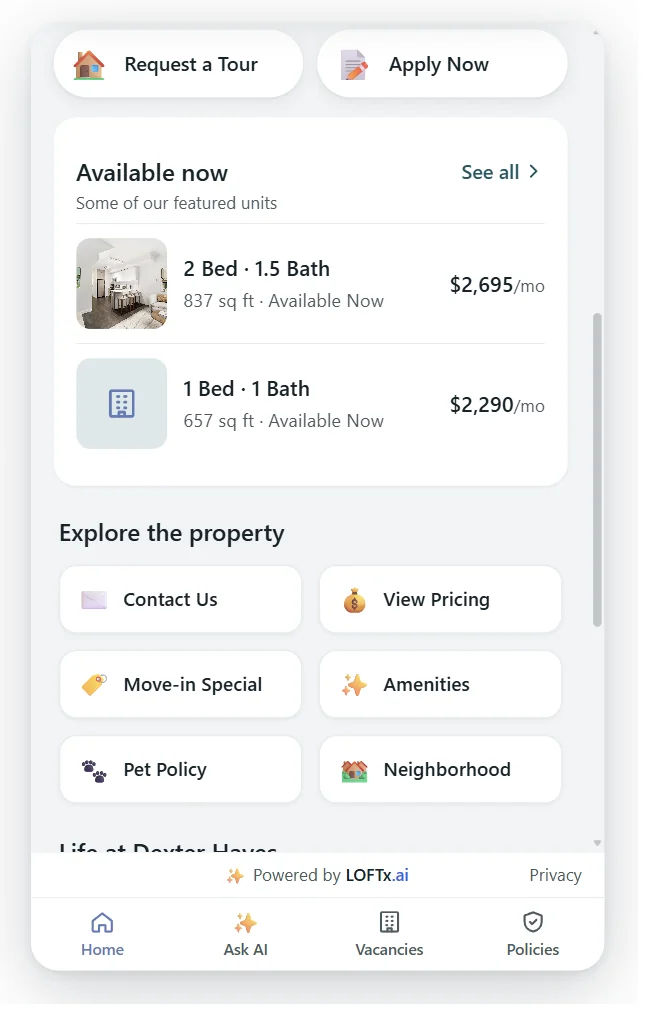
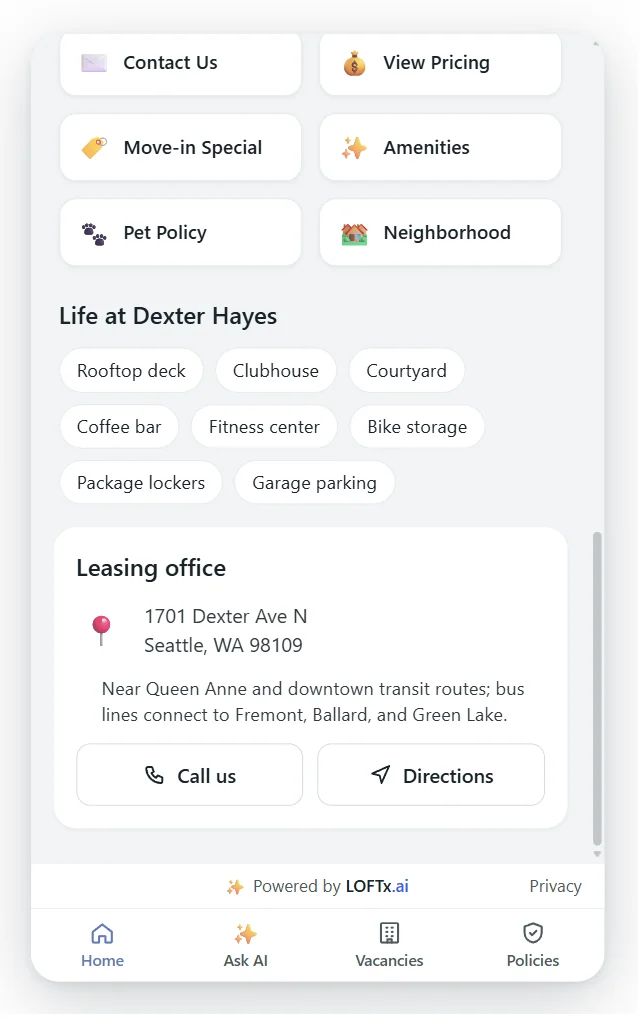
Further down Home: featured units, shortcuts, amenities and the leasing office.
Vacancies. A floor-plan filter shows how many units each plan has, so a visitor can jump straight to one-bedrooms. Each unit card shows:
- the listing's headline, including any current special
- the address, beds, baths and size
- the price and when it's available
- its own Request a Tour and Apply Now buttons
Policies. The tab opens with a search box ("Search pets, deposits, parking…") and the most-asked questions, such as what's due at move-in and how much the application fee is. Below them, category tiles show how many approved answers each topic has. A wide Legal & privacy tile covers privacy, fair housing, screening criteria and required notices.
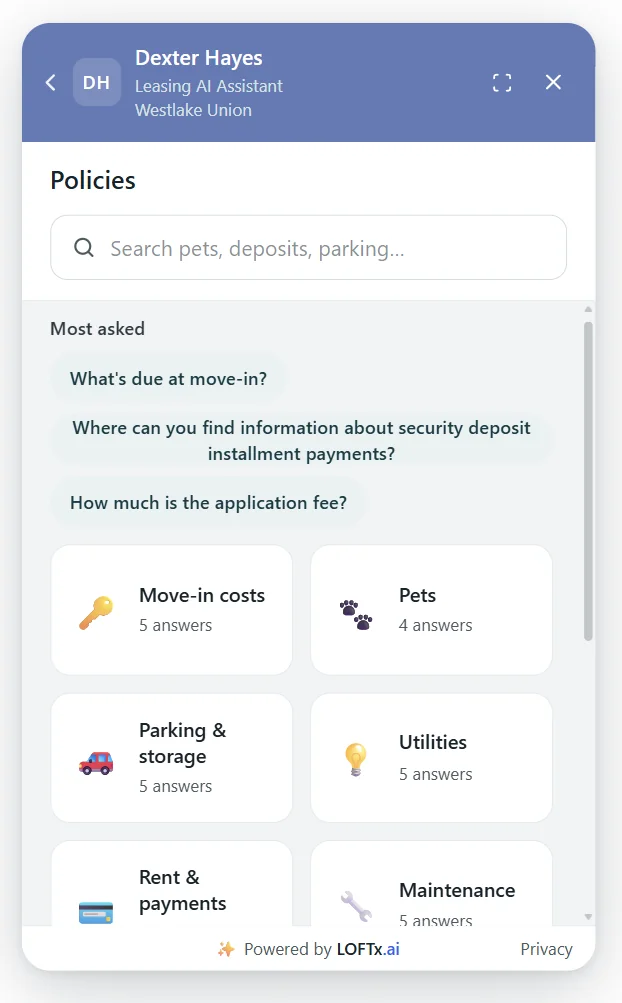
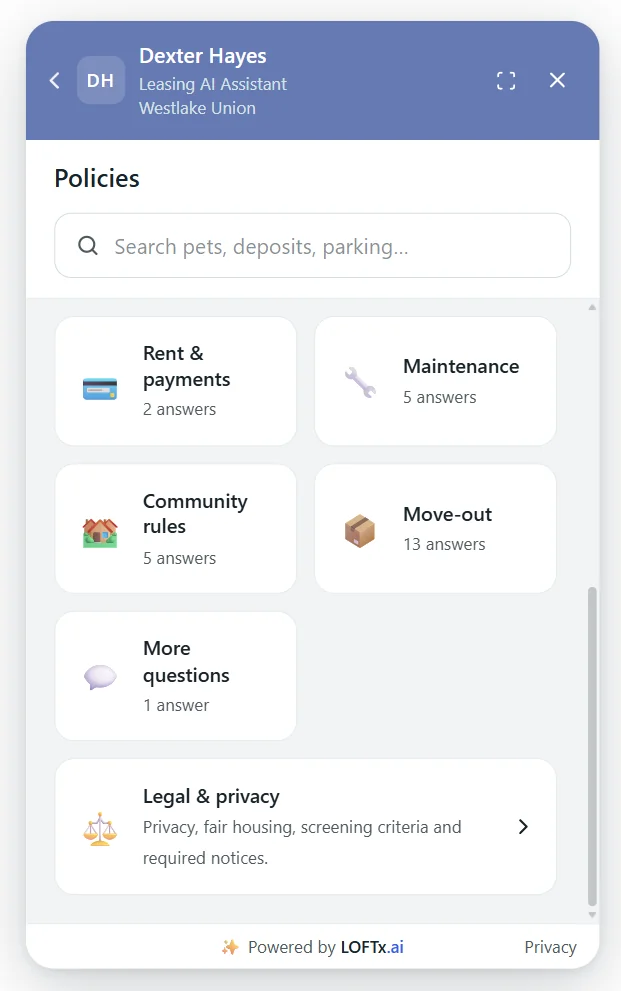
The Policies tab: search, the most-asked questions, and approved answers by category.
Ask AI. Anything the tabs don't cover goes to the chat, such as "Which homes have lake views?" or "Can I tour this Saturday?". The chat answers from the property's data and knowledge base, and books tours on real calendar availability. The same buttons appear under the conversation, and a short note above the input reminds visitors that the leasing office can confirm pricing, availability and Equal Housing details.
Setting up the Messenger, step by step
The Messenger is a widget style that you choose for each property in the chatbot's Widget Settings. It uses the same embed script as the classic chat, so nothing changes on the property's website. The setup is mostly content.
-
Review and approve the policy answers. You don't write them from scratch. The AI reads your lease, addenda and policy documents and drafts a cited answer for each policy topic, with the ways renters ask it. They're grouped into nine categories:
- Move-in costs
- Pets
- Parking & storage
- Utilities
- Rent & payments
- Maintenance
- Community rules
- Move-out
- Legal & privacy
The settings page shows how many answers are live, how many are waiting for review and which topics have no answer yet. Nothing waiting for review is ever shown to visitors. See how the AI builds your leasing chatbot knowledge base.
-
Add a privacy answer or link. An approved privacy answer, or a privacy policy link, is required before you switch a property to the Messenger.
-
Check the leasing office card. The AI fills it from your documents, and you correct anything it missed:
- address
- phone and email
- an after-hours or emergency phone
- office hours
- a directions link (built from the address if you leave it empty)
- arrival notes, such as which entrance to use or where visitors park
-
Check the amenities. The AI lists the building's amenities from your documents. These become the "Life at" tags on Home, so keep building amenities only.
-
Add video, if you have it. You can set an intro video for Home, and list tour videos with their titles and floor plans. Both are optional, and hidden when empty.
-
Arrange Home. Choose the order of "Available now", "Life at" and "Leasing office", turn the Vacancies and Policies tabs on or off, and choose the suggested questions.
-
Preview, then switch. The settings page shows a live preview of your unsaved changes. When it looks right, select the Messenger style. The classic chat stays exactly as it was for any property you don't switch.
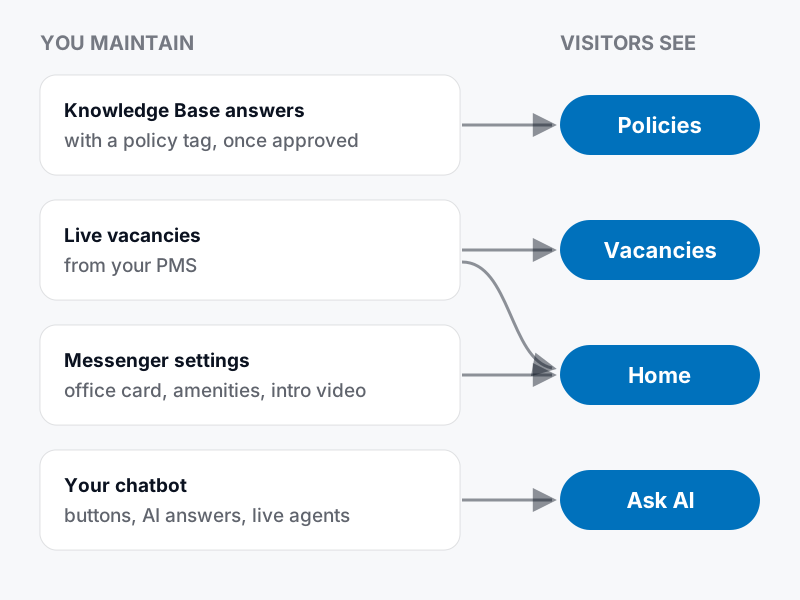
What your team maintains, and where visitors see it.
Why a tabbed apartment website chatbot helps visitors
- It serves browsers and askers. Visitors who'd rather scan can use Vacancies and Policies without typing. Visitors who'd rather ask still get the full AI chat.
- Answers are approved once. The same approved answer covers the Policies tab and the AI's replies, so the website doesn't say one thing and the chat another.
- Answers can be linked. Each policy answer has a link, such as
#policy=pets.fees, that opens it directly. Your team can paste it into an email or text instead of retyping the policy. - Search understands different wordings. A visitor who searches Policies for "dog deposit" finds the pet fees answer, even though the answer never uses that phrase.
- It works on phones. On a phone, the Messenger opens full screen, and it follows light, dark or automatic themes.
- Leads still reach your team. Tour requests, applications and conversations land in the same Prospect Inbox as every other lead, and your team can take over any chat live.
Does AI chat for apartment websites help SEO?
Not directly, and no chat tool can promise rankings. Google says its ranking systems are designed to prioritize helpful, reliable information created to benefit people (Google Search Central). That content lives on your website's pages, not inside a chat window. Practical guidance for a multifamily website chatbot and SEO:
- Keep your key facts on real pages. Amenities, pet and parking policies, and neighborhood information belong on the property's own web pages, as Dexter Hayes does with its amenities page. The chat should repeat those facts, not replace the pages.
- Check page speed after adding any widget. Google recommends that site owners achieve good Core Web Vitals, its page-experience measures for loading, responsiveness and visual stability (Google Search Central). Test the property's pages before and after you add any third-party script, including chat.
- Use chat questions to find content gaps. If visitors keep asking the same thing in chat, that's a sign the website should answer it on a page. The chat analytics show the top questions visitors ask.
- Measure what chat is for. A website chatbot's job is to turn visits from search, ads and listing sites into tours and applications. Judge it by conversations, leads and tours, not by rankings.
Before you switch: a short checklist
- Every policy category your renters ask about has an approved answer.
- A privacy answer or link is in place.
- The office card has a phone number, hours and the right address.
- Amenities list building amenities only, matching the property's website.
- The live preview looks right on a phone-sized screen.
- Someone on the team knows how to take over a chat live.
Frequently asked questions
Do we have to change our website to use the Messenger?
No. The Messenger uses the same embed script as the classic chat. Switching the style in Widget Settings changes what visitors see the next time the chat loads.
Can some properties use the classic chat and others the Messenger?
Yes. The style is chosen per property. Properties you don't switch keep the classic chat window.
What if we don't have an intro video or tour videos?
Leave those settings empty. The Messenger hides any element without content, so Home simply starts with the ask box.
Does it work for a website that covers several properties?
Yes. On a company website, the Messenger shows company-wide policies and the leasing office, plus amenities across your properties, and Vacancies gets a property filter. This guide focuses on single-property websites.
See the Messenger on your property
Installing on WordPress? Follow the WordPress embed guide. If another assistant is already on the site, use the chatbot switching plan to prepare the cutover.
Turn your website questions into a clear implementation plan. Book a demo to review your website, policy content and tour flow with LOFTx.ai. Compare the seven apartment chatbot features or explore website chat.